

Key Takeaways
- A private vault backup has two parts that belong in different places: the encrypted .hypa file and the 12-word recovery phrase that opens it.
- iCloud, computer and Google phone backups never include HypaVault's device key, so restoring a vault from any backup takes its recovery phrase.
- The 3-2-1 rule (3 copies, 2 kinds of storage, 1 kept offsite) suits a .hypa file well, because it's encrypted before it leaves the phone.
- HypaVault checks that each backup opens before calling it saved, and offers a one-time backup drill once a vault holds 20 items.
- Restore from Backup only adds what's missing, so it never deletes anything already in the vault.
In This Post
To back up a private vault properly, keep two things apart: an encrypted copy of the vault, and the key that opens it. In HypaVault, those are a .hypa backup file and the vault's 12-word recovery phrase. Below, I'll cover where each one should live, how to test a backup, and what your phone's own backup misses.
Why a Private Vault Needs Its Own Backup
When you back up a private vault, you make the only spare that exists. HypaVault keeps each vault only on your phone, encrypted, with no HypaVault server holding a copy. That's what keeps it private. It also means a lost, broken or replaced phone takes the only copy with it, unless you've made another.
There's one more case that's easy to forget. A duress passcode erases every other vault on purpose, and a backup with its recovery phrase is what brings those vaults back.
The EFF's guide to keeping your data safe makes the principle plain. If someone would benefit from you losing your data, don't keep it in just one place, "no matter how secure." Its advice is to encrypt a copy and keep it somewhere else.
Doesn't My Phone Backup Already Cover It?
Only partly, which is why it pays to back up a private vault on its own. An iCloud, computer or phone-to-phone backup can bring HypaVault's encrypted vault data to a new phone, but never the device key. That key stays in the phone's secure storage by design, and Google backups don't hold it either. So after a whole-phone restore, HypaVault asks for each vault's recovery phrase, then a new passcode.
Phone backups also follow their own rules, and you don't set them.
What iCloud Backup Holds
Apple says iCloud Backup covers the data on your device that doesn't already sync to iCloud. With iCloud Photos on, for example, your photos aren't in the daily backup at all, because they already live in iCloud.
Keys matter too. Under standard protection, Apple holds the keys to your iCloud Backup in its data centers. Only with Advanced Data Protection is the backup end-to-end encrypted.
What Google Backup Holds
On Android, Google's backup saves apps and app data, contacts, call history, settings and messages. Some of that data is end-to-end encrypted with your screen lock. However, Google notes that photos and videos in Google Photos aren't encrypted by it.
| Backup | What It Saves | Who Holds the Keys | Where It Lives |
|---|---|---|---|
| iCloud Backup | Device data that doesn't already sync to iCloud | Apple, unless Advanced Data Protection is on | iCloud |
| Google backup | Apps and app data, contacts, settings and messages | Google, apart from data sealed with your screen lock | Your Google Account |
| .hypa backup file | Everything in one vault | Only you, through the vault's recovery phrase | Wherever you save it |
How to Back Up a Private Vault in HypaVault
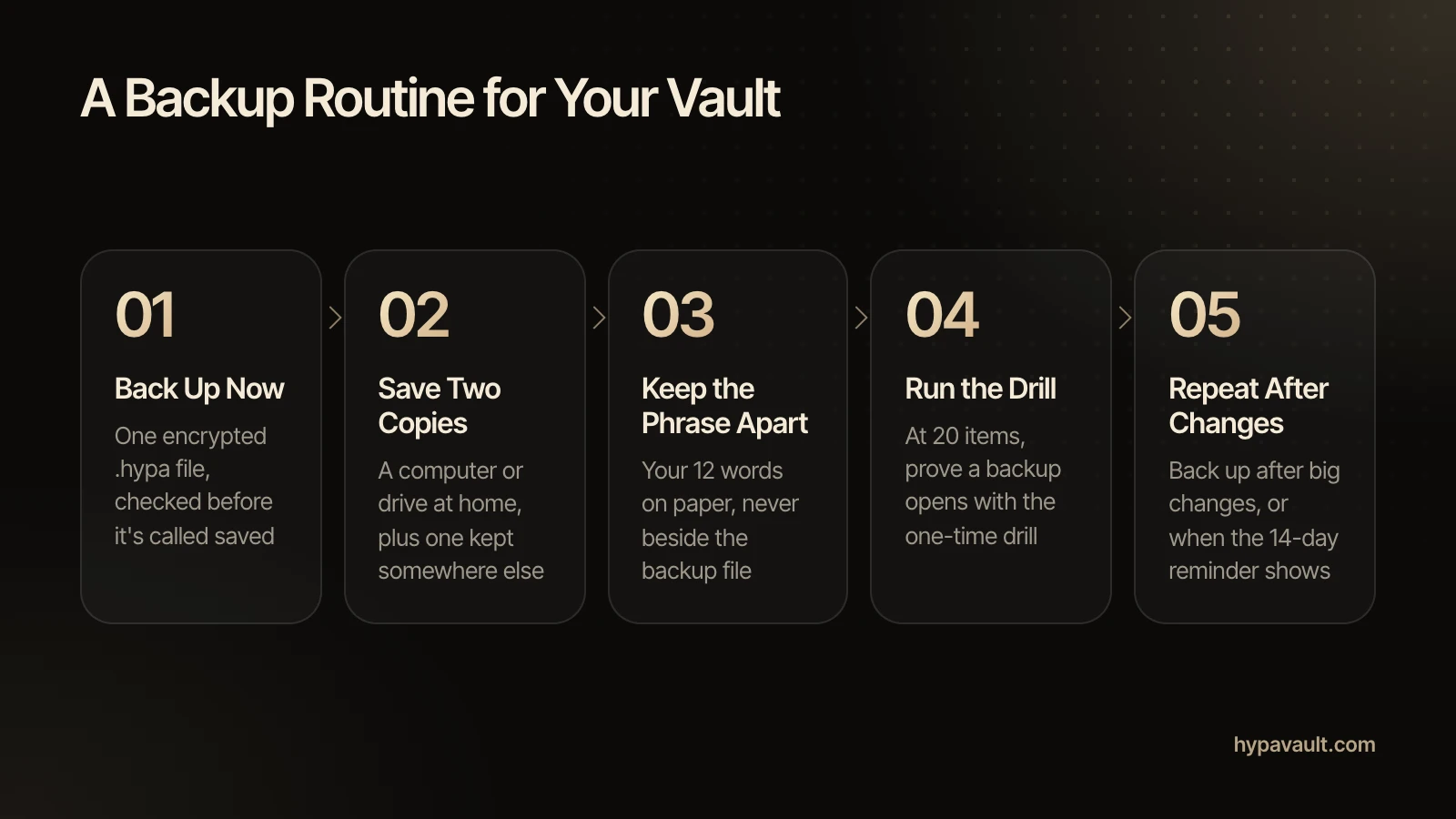
To back up a private vault in HypaVault, you make one file per vault. Each file opens with that vault's recovery phrase, so if you keep more than one vault, back up each one. Encrypted backups are free on every plan.
- 1Unlock the vault you want to back up.
- 2Tap Back Up Now. HypaVault builds one encrypted .hypa file of the vault.
- 3Wait while it checks that the finished file opens. Only then does it call the backup saved.
- 4Save the file wherever you like: Files, a drive, a computer or a cloud drive of your choice.
- 5Save a second copy somewhere else, so one lost device can't take every copy with it.
What's Inside a .hypa File
A .hypa file is the whole vault, encrypted on the phone before it goes anywhere. HypaVault writes it in 1 MiB segments, each sealed with AES-256-GCM and protected against truncation and reordering. In plain terms, a damaged or tampered file won't quietly open with pieces missing.
The file carries no device, name or identity data. Its size is padded to a standard step, so it says little about what's inside. A cloud drive provider can see that the file exists and roughly how big it is, but not what it holds.
Where to Keep Your Backup: The 3-2-1 Rule
The 3-2-1 rule is a simple way to decide how many copies to keep, and where. US-CERT's Data Backup Options paper, hosted by CISA, sets it out for home and business users alike. Keep 3 copies of any important file: 1 primary and 2 backups. Put them on 2 different media types, and store 1 copy offsite.
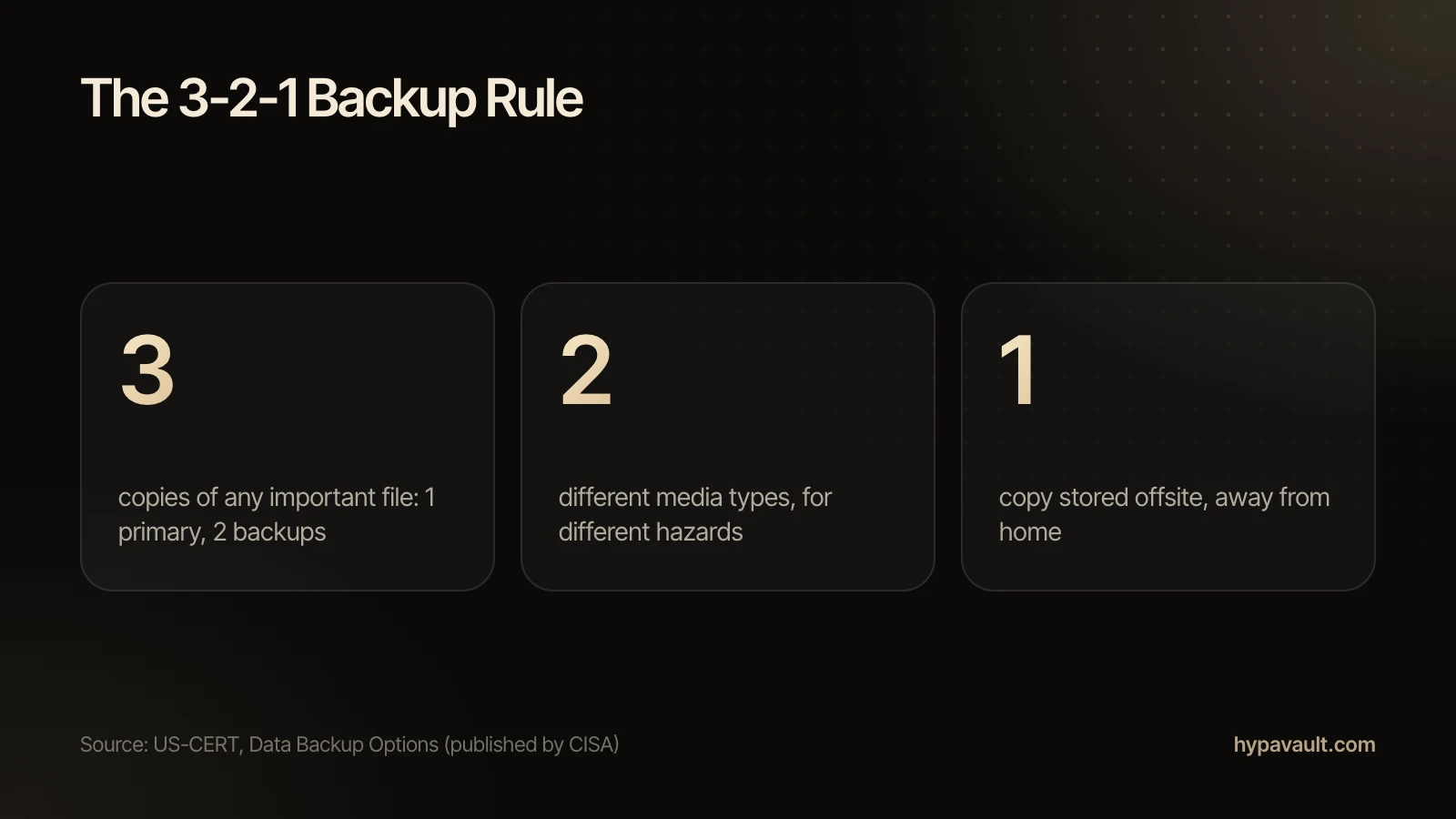
When you back up a private vault, the rule maps onto things most people already own:
- Copy 1 is the vault itself, on your phone.
- Copy 2 is a .hypa file on a computer or an external drive at home.
- Copy 3 is a .hypa file kept away from home: on a cloud drive you choose, or a drive stored elsewhere.
The offsite copy is the one people skip. Yet it's the copy that survives a fire, a flood or a theft that takes your phone and laptop together.
Keep the Recovery Phrase Somewhere Else
However you back up a private vault, the file and the recovery phrase should never sit together. Anyone who has your recovery phrase can open your backups. A phrase saved next to the file undoes the encryption.
HypaVault shows the 12 words once and won't let you copy them, which points you towards paper. Store that paper away from every copy of the file. The habits that protect a crypto seed phrase work here too. Above all, never keep a photo of the phrase in the drive that holds the backup.
Test the Backup Before You Need It
Testing is the step that's easiest to put off when you back up a private vault. Until you've opened a backup, you only think you have one. CISA's backup guidance calls for scheduled recovery tests to verify backup integrity. It's written for businesses, but the logic holds for one person's vault.
HypaVault builds some of that testing in. First, it checks that every finished backup opens before calling it saved. Then, once a vault holds 20 items, it offers a one-time backup drill to prove a backup opens. A reminder also appears whenever your last backup is more than 14 days old.
Keep in mind that a backup is a snapshot. It holds what was in the vault when you made it. So make a fresh one after you add anything you'd hate to lose. The backup reminders and drill article has the details.
How to Restore a Vault From a Backup
Restoring is the reason to back up a private vault at all, and it takes three steps.
- 1Choose Restore from Backup.
- 2Pick the .hypa file.
- 3Enter the 12-word recovery phrase of the vault it came from.
Restore from Backup adds back what's missing and removes nothing. That makes it safe to run on a vault that still holds files, as the restore steps explain. One side effect is worth knowing: a file you deleted after that backup counts as missing, so it comes back too.
On a New Phone
On a new phone, restore the .hypa file with the vault's recovery phrase and choose a new passcode. If you restored the whole phone from a backup instead, HypaVault asks for each vault's recovery phrase to bring it over. Our guide to moving to a new phone covers both routes.
With Pro, Sync with Another Phone is a third route. It sends a copy of a vault to a phone on the same Wi-Fi, with no server in between. Either way, tap Restore Purchases afterwards to bring Pro back.
After a Duress Passcode
If a duress passcode erased your other vaults, the backups you made earlier still open. Restore each one with its own recovery phrase, and that vault comes back as it was when you backed it up.
References
- 1.Keeping Your Data Safe · EFF Surveillance Self-Defense
- 2.What does iCloud back up? · Apple Support
- 3.iCloud data security overview · Apple Support
- 4.Back up or restore data on your Android device · Android Help
- 5.Data Backup Options · US-CERT, published by CISA
- 6.Back Up Business Data · CISA

About the Author
Siddharth Pereira · Co-Founder, Product
Siddharth Pereira co-founded the company behind HypaVault and runs its product roadmap. He has spent more than 18 years building digital products, with a focus on product strategy and product management. Here he writes about how phone privacy works in practice: encryption, backups and the settings that matter.