Encrypted File Manager for Documents and IDs
Passports, insurance papers and medical scans deserve better than a downloads folder or a cloud photo backup. HypaVault keeps any file type encrypted, in folders you organise your way.

Encrypted File Manager at a Glance
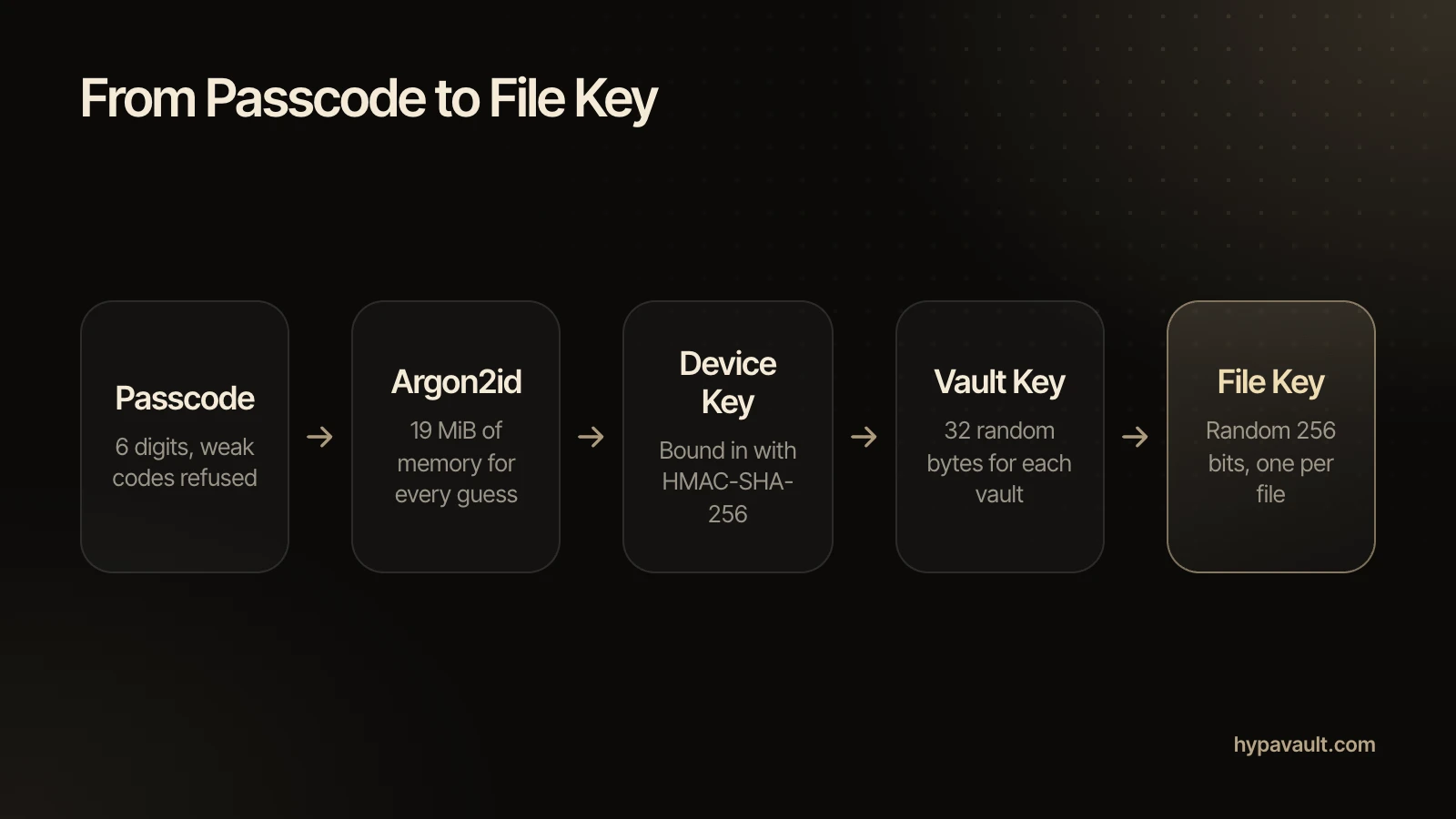
Encrypted File Manager is the Files tab in HypaVault: a full file manager for passports, IDs, PDFs and any other file type, kept in nested folders on your phone. File contents, every file and folder name, and the folder structure itself are encrypted with AES-256-GCM. Each import is checked against the original before it counts, and sharing a file hands over a decrypted copy only after a warning.
- In the App
- The Files tab, or + › Import Documents
- File Types
- Any: PDFs, documents, sheets, archives
- Encrypted
- Contents, names and the folder structure
What Encrypted File Manager Does
Any File Type
PDFs, documents, spreadsheets, archives and anything else. Each type keeps its own colour and icon.
A Real File Manager
Nested folders, a tappable path back up, list or icon views, and sorting by name, date, size or type. Move, copy and rename one item or many.
Shared Only with a Warning
Sharing decrypts a copy for your phone's share sheet, after a warning that the copy leaves the vault unprotected.
How to Use Encrypted File Manager
3 steps, shown on the screen you'll see in the app.
Questions About Encrypted File Manager
Any file type, in nested encrypted folders.
Import them into HypaVault. They're encrypted on your phone, kept apart from your normal files, and never uploaded anywhere.
Read the Help ArticleAny type: PDFs, documents, spreadsheets, archives and anything else. Each type keeps its own colour and icon.
Read the Help ArticleYes. Folders can nest, and a tappable path takes you back up. Drag items onto a folder to move them.
Read the Help ArticleYes. View Options switches between List and Icons, sorts by name, date, size or type, and lets you select items. The choice is saved per folder.
Read the Help ArticleNo. Deleting is permanent, after a confirmation.
Read the Help ArticleChoose Share. HypaVault decrypts a copy for your phone's share sheet, after a warning that the copy leaves the vault unprotected.
Read the Help ArticleYes. Every name is encrypted, along with the contents, the folder structure and thumbnails.
Read the Help ArticleFree holds 5 other files, counted across the whole phone. Pro removes the limit.
Read the Help Article
Go Further with Encrypted File Manager
The full walkthrough, the reasoning behind it, the short version of each task and a free tool to check your own setup.