Stealth Mode: A Calculator Vault and Clock Disguise
HypaVault can pass for an ordinary utility. The lock screen becomes a working calculator or an alarm clock, and the app icon changes to match. Security never depends on the disguise. It's an extra layer.

Stealth Mode at a Glance
Stealth Mode is the HypaVault setting that disguises your vault as an ordinary utility: the lock screen becomes a working calculator or alarm clock, and the app icon can change to a calculator or a clock. To open the vault, type your passcode and press = on the calculator, or set your passcode as an alarm time. A wrong passcode looks like any other sum or alarm, never like an error, and the vault stays encrypted whether the disguise is on or off.
- Lock Screens
- Light, Dark, Calculator or Clock
- App Icons
- HypaVault, Calculator or Clock
- Wrong Tries
- Never shown as errors or lockouts
What Stealth Mode Does
A Calculator That Really Calculates
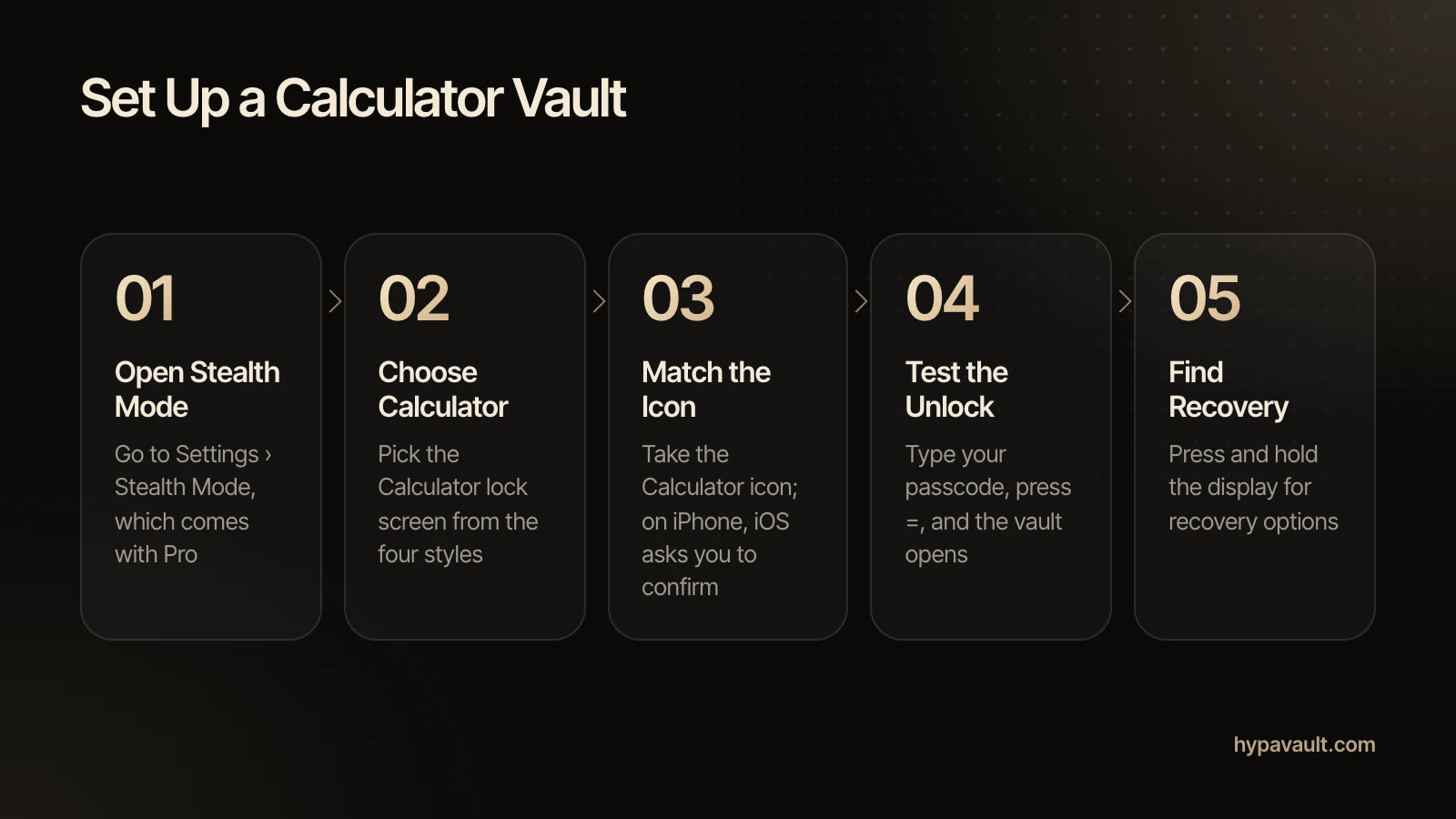
Order of operations, %, ± and delete all work. Type your passcode and press = to open the vault. Any other sum is just arithmetic.
An Alarm Clock That Hides a Door
Tap +, type your passcode as the alarm time and tap Save. Anything else just sets an alarm.
An Icon to Match
Choose the HypaVault, Calculator or Clock icon. On iPhone the name under it stays Hypa. On Android the name changes too.
How to Use Stealth Mode
3 steps, shown on the screen you'll see in the app.
Questions About Stealth Mode
A lock screen that works as a calculator or clock.
A vault disguised as a calculator. With Stealth Mode, HypaVault's lock screen is a working calculator. Type your passcode and press = to open your vault.
Read the Help ArticleType your passcode and press =. Any other sum is just arithmetic.
Read the Help ArticleTap +, type your passcode as the alarm time and tap Save. Anything else just sets an alarm.
Read the Help ArticleNo. On iPhone the icon changes, but the name under it stays Hypa, and iOS asks you to confirm the change. On Android both the icon and the name change.
Read the Help ArticleNo. The disguises never say a try was wrong and never show a lockout. A wrong passcode looks like any other number.
Read the Help ArticlePress and hold the calculator's display, or the Alarms title on the clock.
Read the Help ArticleNo. The vault is encrypted either way. Stealth Mode is an extra layer, and security never depends on it.
Read the Help ArticleIt's part of Pro. Free uses the plain passcode screen, in the app's Light or Dark look, and the HypaVault icon.
Read the Help Article
Go Further with Stealth Mode
The full walkthrough, the reasoning behind it, the short version of each task and a free tool to check your own setup.