

Key Takeaways
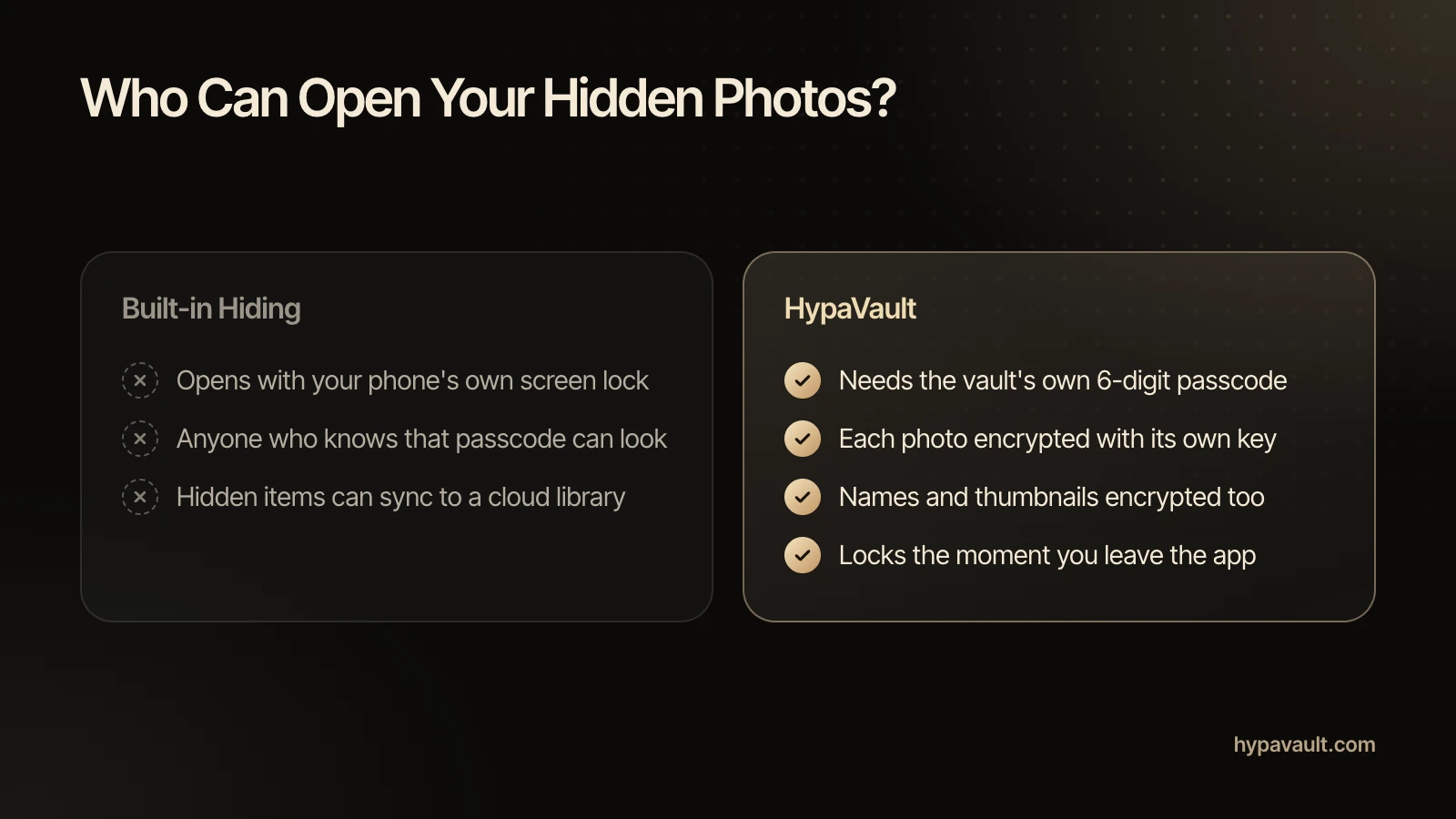
- The iPhone Hidden album and the Google Photos Locked Folder both open with your phone's own screen lock, so anyone who knows it can see what you hid.
- An encrypted vault such as HypaVault adds a separate 6-digit passcode and encrypts every photo with AES-256-GCM, each with its own key.
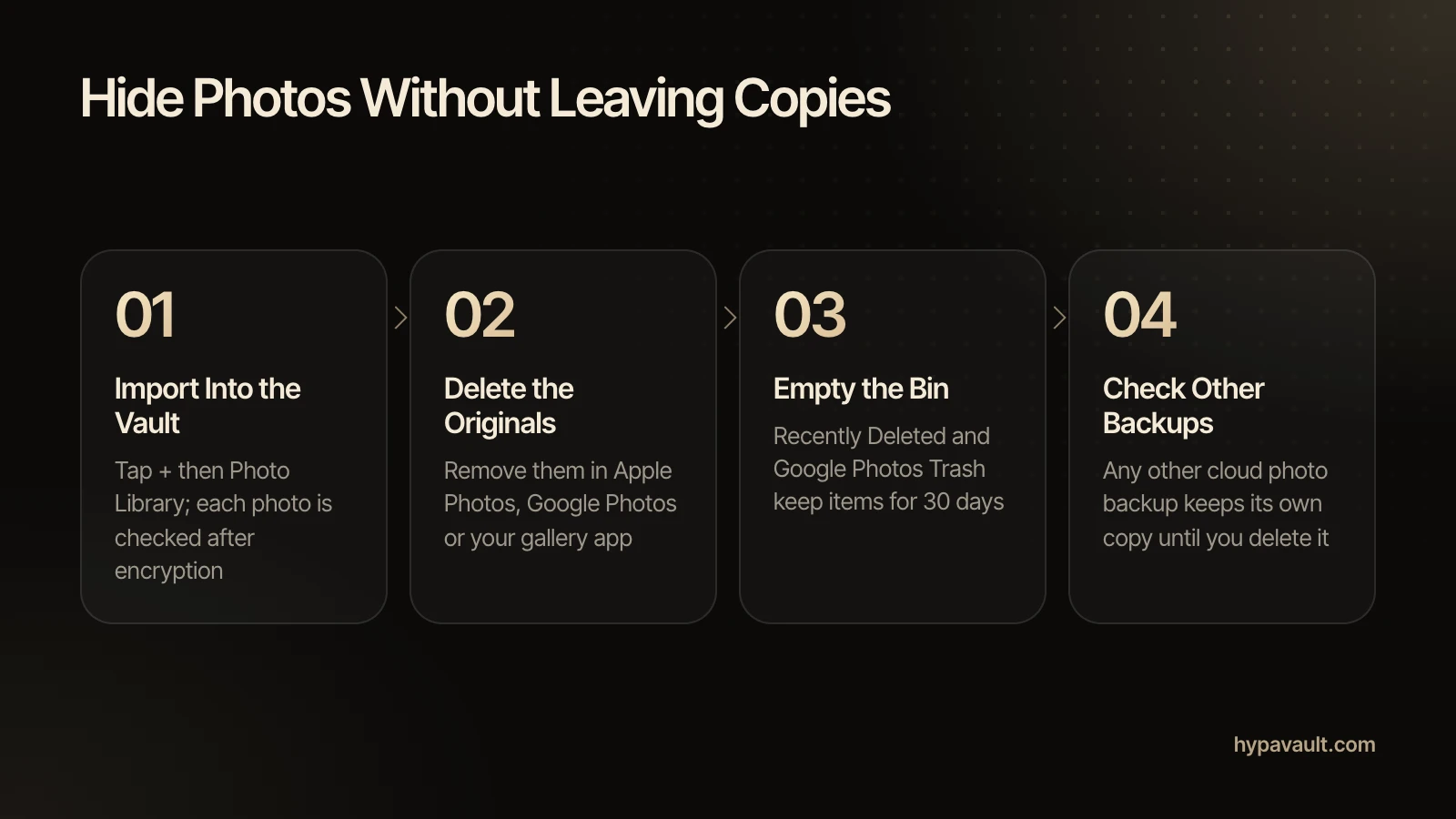
- Importing a photo into a vault makes a copy, and the original stays in your gallery until you delete it and empty Recently Deleted or Trash.
- Apple Photos and Google Photos both keep deleted photos for 30 days unless you remove them sooner.
- Photos taken with HypaVault's in-app camera never reach your camera roll or its cloud backup.
In This Post
- 01Two Ways to Hide Photos on iPhone and Android
- 02Hide Photos on iPhone with the Hidden Album
- 03Hide Photos on Android with Google Photos Locked Folder
- 04What Built-in Hiding Doesn't Protect
- 05Move Photos Into an Encrypted Vault
- 06Delete the Originals Without Leaving Copies
- 07Take New Private Photos Inside the Vault
- 08Keep Hidden Photos Covered Day to Day
You can hide photos on iPhone and Android in two ways. Use the phone's built-in hiding, or move them into an encrypted vault with its own passcode. Built-in hiding keeps photos out of your library. It doesn't stop anyone who knows your phone's passcode. This guide covers both, step by step, plus the cleanup most guides skip.
Two Ways to Hide Photos on iPhone and Android
Built-in hiding moves a photo out of view but leaves it under your phone's own lock. On iPhone, that's the Hidden album in Photos. On Android, Google Photos offers a Locked Folder. An encrypted vault is a separate app with a separate passcode. Knowing how to unlock the phone isn't enough to open it.
| Question | iPhone Hidden Album | Google Photos Locked Folder | HypaVault |
|---|---|---|---|
| Opens with | Face ID, Touch ID or your iPhone passcode | Your phone's screen lock | The vault's own 6-digit passcode |
| Cloud copy | Syncs with iCloud Photos if you use it | Only if Locked Folder backup is on | None of its own. Backups go only where you save them. |
| Weak spot | Anyone who knows your iPhone passcode can open it | Without backup, clearing the Photos app's data deletes the items | Originals stay in your gallery until you delete them |
Hide Photos on iPhone with the Hidden Album
The Hidden album is Apple's built-in way to keep photos out of your library. According to Apple's Hidden album guide, hidden items don't appear in the Library, other albums or the Photos widget. Since iOS 16, the album stays locked by default.
- 1Open the Photos app.
- 2Touch and hold the photo or video you want to hide.
- 3Tap Hide, then confirm.
- 4To take the album itself out of sight, open Settings › Apps › Photos and turn off Show Hidden Album.
Two details matter. First, the iPhone User Guide says Face ID, Touch ID or your passcode opens the Hidden album. Second, iCloud Photos hides the photo on your other devices too, so it stays in your iCloud library.
That cloud copy has its own rules. Under Apple's default standard data protection, iCloud encrypts your photos but Apple holds the keys. Only Advanced Data Protection makes iCloud Photos end-to-end encrypted.
Hide Photos on Android with Google Photos Locked Folder
Google Photos Locked Folder works on Android 6 and later. Items in it leave the photo grid, search, albums and memories, and other apps with photo access can't see them. Google's Locked Folder help page also says its password is your screen lock. You can't choose a different one.
- 1Open Google Photos and tap Collections, then Locked.
- 2Tap Set up Locked Folder and unlock your phone when asked. You need a screen lock first.
- 3Go back to Photos and select the photos or videos you want to hide.
- 4Tap Add to, then Move to Locked Folder, then Move.
Watch the backup setting. With Locked Folder backup off, the items live only on that phone. Google says you lose them if you uninstall Photos, clear its data, or lose or damage the phone. Moving a photo also leaves its copies and edited versions where they were.
What Built-in Hiding Doesn't Protect
Built-in hiding protects photos from a casual scroll, not from someone who knows your passcode. When you hide photos on iPhone and Android with the built-in tools, the lock is the same lock as your phone. A partner, a relative or anyone who has watched you unlock it can open them in seconds.
That's the gap a vault closes. HypaVault opens each vault with its own 6-digit passcode and encrypts every photo with AES-256-GCM, each with its own key. It encrypts names, folders and thumbnails too. For the full difference, read why a hidden folder isn't an encrypted vault.
Move Photos Into an Encrypted Vault
An encrypted vault is the stronger way to hide photos on iPhone and Android. HypaVault works the same way on both. The app makes an encrypted copy, checks it, and then helps you remove the original. Setup is just a passcode.
- 1Install HypaVault and choose a 6-digit passcode. Pick one that's different from your phone's passcode.
- 2Write your 12-word recovery phrase on paper. HypaVault shows it once and never stores it.
- 3Tap +, choose Photo Library, and select the photos and videos to move.
- 4Wait while HypaVault encrypts each one, decrypts it again and compares it with the original. Only then does it count.
- 5When HypaVault offers to remove the originals, follow its steps.
Your photos then appear in the private photo vault, newest first and grouped by month. Thumbnails decrypt only as they scroll into view. Videos get a tab of their own in the secure video vault, and large ones stream from encrypted pieces instead of decrypting whole. The help article on importing photos has the short version.
Delete the Originals Without Leaving Copies
Importing makes a copy; it doesn't move the original. However you hide photos on iPhone and Android, this cleanup decides whether they're really gone from view. HypaVault explains how to remove the originals, but the deleting happens in your phone's own photo app.
On iPhone
- 1In Photos, tap Select, choose the photos you imported and tap the trash button.
- 2Tap Collections, then Recently Deleted under Utilities. Tap View Album and unlock.
- 3Tap Select, choose the same photos, tap the More button, then tap Delete.
Apple keeps deleted items in Recently Deleted for 30 days unless you remove them sooner. With iCloud Photos on, deleting a photo removes it from every device signed in to the same Apple Account.
On Android
- 1In Google Photos, touch and hold a photo, select the others you imported, and tap Trash.
- 2Tap Collections, then Trash, then More.
- 3Tap Empty Trash, then Delete permanently.
Google's guide to deleting photos says items wait in Trash for 30 days. If you backed them up, deleting removes them from every device with backup on. Photos on a removable memory card may survive, so delete those in your phone's gallery app too.
Copies you've already shared are another matter. Google says deleting a photo doesn't automatically remove it from Drive, Gmail or YouTube. Any other app that backs up your camera roll also keeps its own copy until you delete it there.
Take New Private Photos Inside the Vault
The cleanest copy is one that never reaches your gallery. HypaVault's in-app camera takes photos and records videos straight into the vault. Nothing lands in your camera roll or its cloud backup, which makes it the simplest way to hide photos on iPhone and Android from the start. Tap + and choose Take Photo. Taking photos in the vault takes three steps.
Keep Hidden Photos Covered Day to Day
- Auto-Lock locks the vault the moment you leave the app, or after 30 seconds if you prefer.
- A privacy cover hides the vault whenever the app is in the background, including in the app switcher.
- On Android, screenshots, screen recordings and casting of HypaVault show black.
- On iPhone, iOS doesn't let apps block screenshots. HypaVault covers itself while the screen is recorded or mirrored.
- Sharing a photo out of the vault hands over a decrypted copy, so HypaVault warns you first.
Before you share a photo anywhere, check what it carries. The free photo metadata remover shows the location and camera details inside a picture and saves a clean copy. To tighten the rest, follow the guide to locking down HypaVault.
Finally, keep a backup. Back Up Now makes one encrypted file that opens only with your recovery phrase. Here's how to back up a private vault and where to keep the file.
References
- 1.Hide photos on your iPhone, iPad, Mac, or Apple Vision Pro with the Hidden album · Apple Support
- 2.Delete or hide photos and videos on iPhone (iPhone User Guide) · Apple Support
- 3.iCloud data security overview · Apple Support
- 4.Hide sensitive photos & videos in Locked Folders · Google Photos Help
- 5.Delete photos & videos · Google Photos Help

About the Author
Lisa Noronha · Co-Founder
Lisa Noronha co-founded the company behind HypaVault and leads its teams. She has more than 20 years of experience in product, digital experience and growth, working with major brands worldwide. Here she writes about keeping personal photos, documents and crypto keys private on everyday phones.