

Key Takeaways
- A calculator vault is a private vault whose lock screen works as a real calculator and opens only when you type your passcode and press =.
- In HypaVault's Stealth Mode, a wrong passcode looks like any other number, and the disguise never shows an error or a lockout.
- On iPhone the icon can change to a calculator but the name under it stays Hypa, while on Android both the icon and the name change.
- A disguise only hides that a vault exists, so the protection has to come from encryption, which HypaVault applies with or without Stealth Mode.
- Recovery options stay out of sight: press and hold the calculator's display, then use your 12-word recovery phrase.
In This Post
A calculator vault is a private vault whose lock screen works as an ordinary calculator. You can type a sum and get the answer. Type your passcode and press =, though, and the vault opens instead. In HypaVault, the calculator vault is part of Stealth Mode, and it sits on top of the encryption rather than replacing it.
Why Disguise a Vault at All?
An app that looks like a vault invites questions. Someone glancing at your home screen, or flicking through the app switcher, learns there's something to hide. That person might be a relative borrowing your phone for a call, or a friend you've handed it to so they can see one photo. A disguise answers the question before anyone asks.
Whether you need one depends on who you're protecting your files from. The EFF's guide to building your security plan starts with exactly that question, then asks how bad the consequences would be if you failed.
A calculator vault answers one kind of risk: a person who picks up your unlocked phone and looks around. Against someone with time and tools, the encryption does the work, not the disguise.
How a Calculator Vault Works in HypaVault
HypaVault's Calculator lock screen is a fully working calculator. It handles order of operations, %, ± and delete, so it holds up when someone actually uses it.
What Happens When You Press =
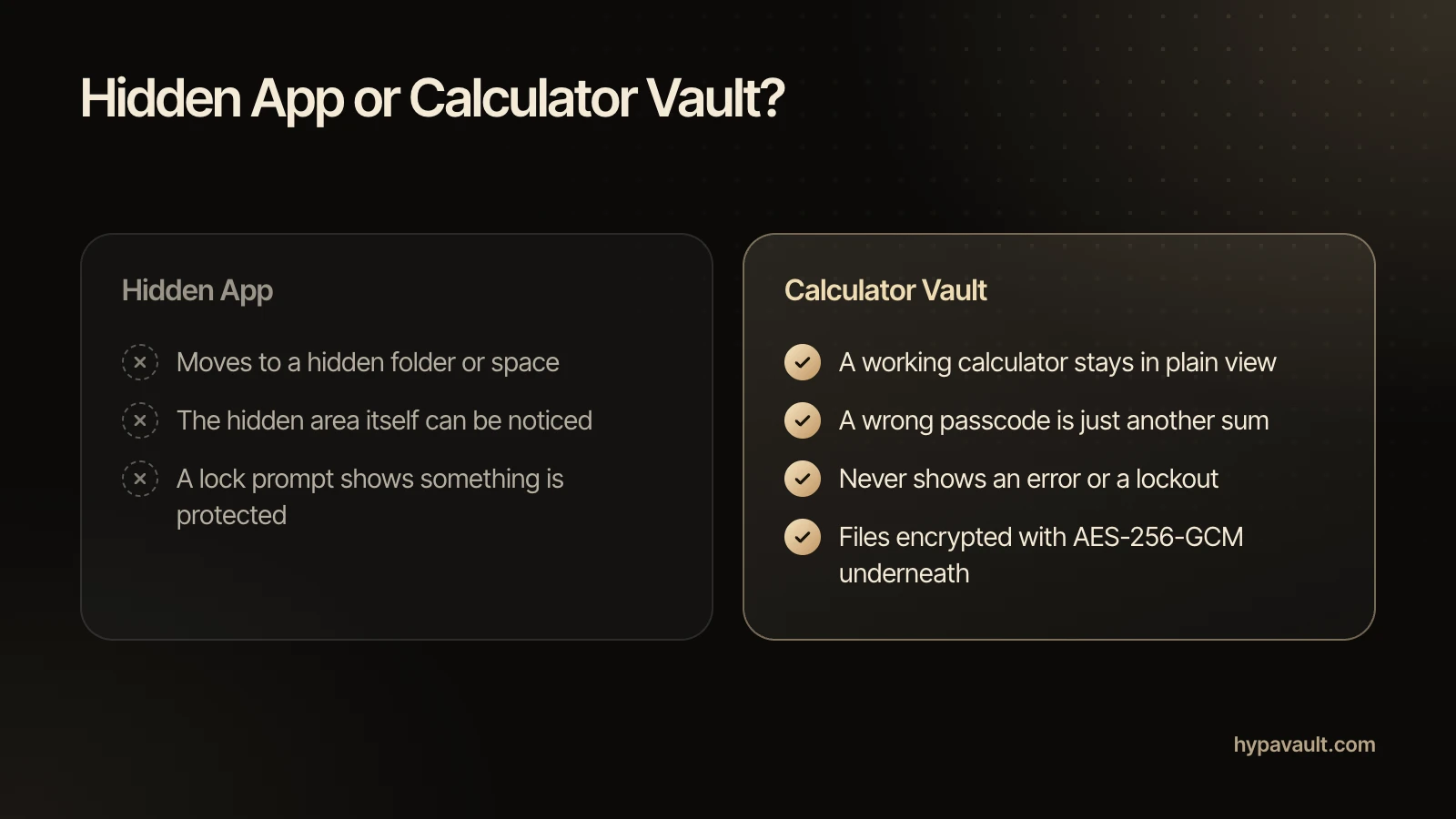
To open the vault, type your 6-digit passcode and press =. Any other sum is just arithmetic. A wrong passcode looks like any other number, because to the calculator, it is one.
The disguise never says a try was wrong, and it never shows a lockout. So someone testing numbers sees only answers, with nothing to suggest a vault exists. With Additional Vaults, the same calculator opens up to three vaults, and the passcode you type decides which one.
Or Disguise It as an Alarm Clock
Prefer a clock? The Clock lock screen looks like an alarm clock's Alarms screen. To unlock, tap +, type your passcode as the alarm time and tap Save. Anything else just sets an alarm, and pressing and holding the Alarms title brings up recovery options.
Does the App Icon Change Too?
Yes. Stealth Mode offers three app icons: HypaVault, Calculator and Clock. When you choose a lock screen, HypaVault offers the icon that matches it.
The name under the icon works differently on each platform. On iPhone, the icon changes but the name under it stays Hypa, and iOS asks you to confirm the change. On Android, both the icon and the name change. So on iPhone, anyone who reads the label closely will see Hypa under a calculator icon.
In the App Switcher and on Screenshots
The disguise holds up in the app switcher too, where it shows instead of the vault. Separately, HypaVault guards against screen capture. On Android, screenshots, screen recordings and casting of the app show black. On iPhone, iOS doesn't let apps block screenshots, so HypaVault covers itself in the app switcher and while the screen is recorded or mirrored.
How to Set Up a Calculator Vault
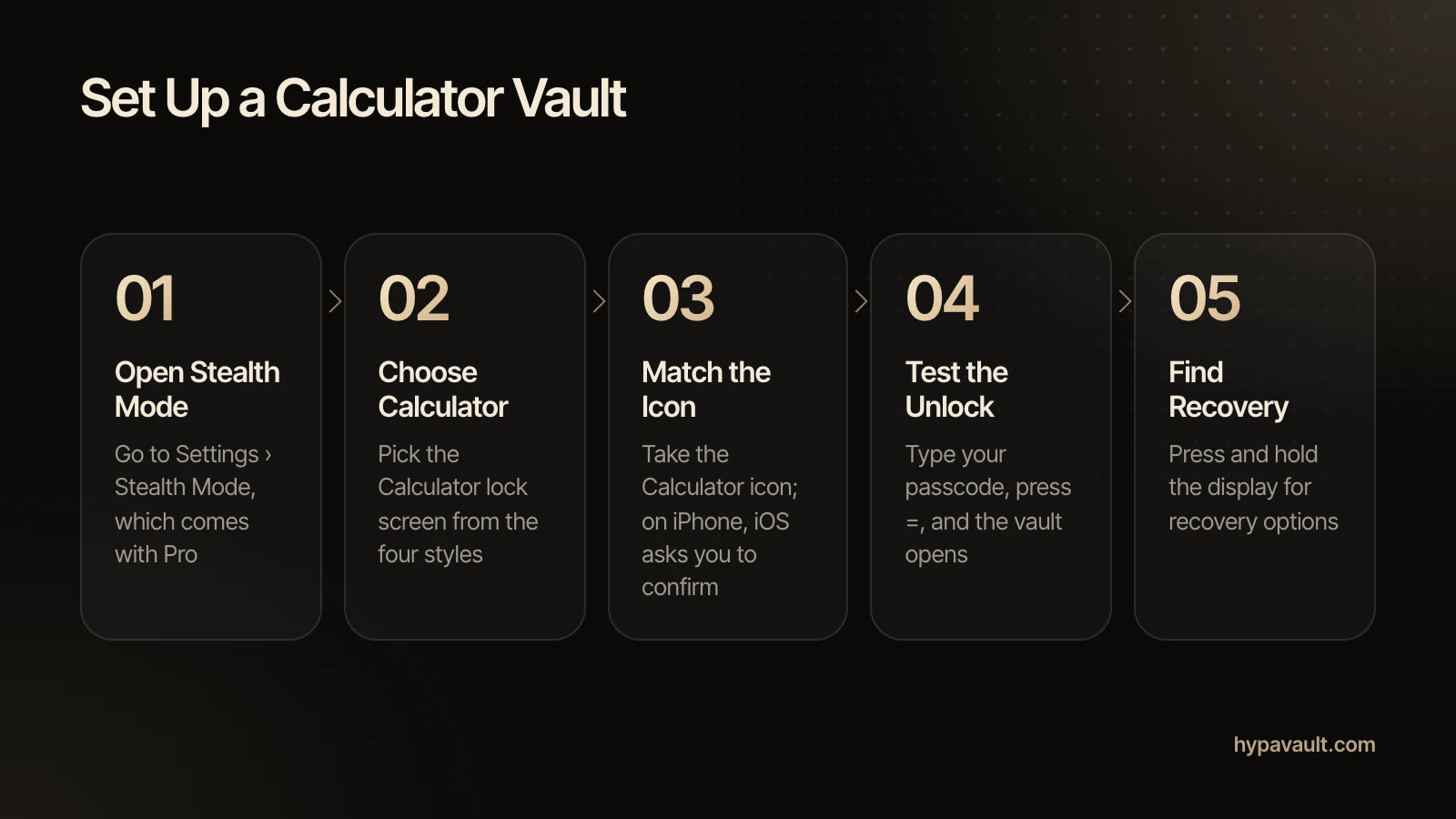
Setting up a calculator vault takes a minute. Stealth Mode comes with Pro, and it lives in Settings.
- 1Open Settings › Stealth Mode.
- 2Choose a lock screen from Light, Dark, Calculator and Clock. Pick Calculator.
- 3Accept the matching Calculator icon when HypaVault offers it. On iPhone, confirm the change when iOS asks.
- 4Leave the app and let the vault lock, then reopen it from the new icon.
- 5Type your passcode and press =. The vault opens.
- 6Try a wrong number too, so you know what a miss looks like: just an answer.
The Stealth Mode help article lists every lock screen and icon option in one place.
Choose a Passcode Nobody Would Guess
The calculator makes your passcode look like an ordinary number, but it still has to be a good one. HypaVault refuses weak codes such as runs (123456) and repeats (111111). Skip dates and numbers people link to you, too, since someone who suspects a disguise may try those first.
Calculator Vault or Hidden App?
iPhone and Android can now hide apps on their own, so it's fair to ask why a calculator vault still helps. The answer lies in what a curious person actually sees.
Hidden Apps on iPhone
On iPhone, you can lock or hide an app. Apple says hiding removes it from the Home Screen, App Library and search results. The app then moves to a Hidden folder in App Library that needs authentication to open. That keeps it out of sight, but a folder named Hidden still tells someone where to look.
Private Space on Android
On Android 15 and later, private space is a separate area for apps, with its own lock. While it's locked, its apps are stopped and hidden from the launcher and recent apps. Even so, Google cautions that the space's existence can be uncovered through computer access, device logs or other apps.
A Disguise in Plain View
A calculator vault takes the opposite approach. Nothing is missing from the home screen, and there's no hidden folder to notice. Instead, an everyday calculator sits in plain view and behaves like one.
| Approach | What Someone Sees | What Opens It |
|---|---|---|
| Hidden app on iPhone | A Hidden folder in App Library | Face ID, Touch ID or the phone's passcode |
| Private space on Android | Apps gone from the launcher while it's locked | A separate lock you set |
| HypaVault calculator vault | A working calculator, or an alarm clock | Your vault's passcode, then = |
What a Calculator Vault Can't Do
A disguise only hides that a vault exists. It does nothing for the files once someone sees through it, and the calculator vault idea is well known.
Security engineers have a principle for this. NIST's Guide to General Server Security calls it open design: system security should not depend on the secrecy of the implementation. For a vault, that means the disguise can be a bonus, but never the lock. It's the same gap you see in a hidden folder vs an encrypted vault.
That's why HypaVault encrypts the vault the same way with or without Stealth Mode. Every file gets its own key and is sealed with AES-256-GCM. HypaVault also stretches your passcode with Argon2id, the memory-hard function described in RFC 9106. Then it binds the result to a device key in the phone's secure storage.
Watch Out for Watchers
The disguise can't help if someone sees you unlock it. A person who watches you type six digits and press = learns the trick and the passcode at once. So unlock where nobody can see the screen. HypaVault also can't protect against malware, or against someone watching while the vault is open.
If your worry is being forced to unlock, a disguise won't help either. That's the job of a duress passcode, which silently erases your other vaults and opens an empty one.
Forgot the Passcode Behind the Calculator?
Recovery options are still there, just out of sight. Press and hold the calculator's display, or the Alarms title on the clock. Then enter your 12-word recovery phrase and choose a new passcode. The forgotten passcode steps cover the rest.
Stealth Mode needs Pro. If Pro ends, the lock screen goes back to the plain passcode screen and the icon to HypaVault. Every vault still opens with its passcode, so nothing is lost along with the disguise.
References
- 1.Your Security Plan · EFF Surveillance Self-Defense
- 2.Lock or hide an app on iPhone · Apple Support
- 3.Hide sensitive apps with private space · Android Help
- 4.SP 800-123: Guide to General Server Security · NIST
- 5.RFC 9106: Argon2 Memory-Hard Function for Password Hashing and Proof-of-Work Applications · RFC Editor (IRTF)

About the Author
Lisa Noronha · Co-Founder
Lisa Noronha co-founded the company behind HypaVault and leads its teams. She has more than 20 years of experience in product, digital experience and growth, working with major brands worldwide. Here she writes about keeping personal photos, documents and crypto keys private on everyday phones.